
การวิเคราะห์เว็บไซต์
การวิเคราะห์เว็บไซต์ช่วยให้เจ้าของเว็บไซต์ติดตามว่าผู้คนใช้เว็บไซต์อย่างไร มีข้อมูลเกี่ยวกับข้อมูลประชากร พฤติกรรม และการโต้ตอบของผู้เยี่ยมชม ช่วยปรับปรุงเว็บไซต์และกลยุทธ์การตลาด
You can track your NightPOS website's traffic using Plausible.io or Google Analytics. We recommend using Plausible.io as it is privacy-friendly, lightweight, and easy to use.
Plausible.io
NightPOS hosts its own Plausible.io server. The Plausible Analytics dashboard is integrated into NightPOS and can be accessed via .
Databases hosted on NightPOS Online and using an nightpos.com domain name benefit from a free,
ready-to-use Plausible.io solution with automatically generated credentials and a preconfigured
Plausible account. To enable it, go to ,
then, in the Tracking & SEO section, enable Plausible Analytics. The
credentials are automatically filled in the Shared Link Auth and the Site
fields.
Note
If you already have a Plausible.io account and you want to connect it to your NightPOS Online
database, you must create two ir.config.parameters to use Plausible.io's servers. To do so,
enable the developer mode and go to . Click New and fill in the following
Key and Value fields:
คีย์
ค่า
website.plausible_script
https://plausible.io/js/plausible.js
website.plausible_server
https://plausible.io
Then, go to the Plausible website and follow the steps to set up your account and link it to your NightPOS database.
Warning
Deactivating the free Plausible.io account linked to your NightPOS Online database will also remove the existing keys. As a result, new keys will be generated, while all historical data will remain associated with the old keys. If you plan to deactivate the account, it is recommended to save the existing keys to preserve access to that data.
If you use a custom domain name (e.g., example.com),
or if your database is hosted on NightPOS.sh or On-premise, you need to create your own Plausible.io
account or use an existing one and link it to your database. To do so, follow these steps:
- สร้าง หรือ เข้าสู่ระบบ ไปยัง
บัญชี Plausible.io
If you are creating a new account, go through the registration and activation steps. On the Add site info page, enter your website Domain name without including
wwworhttp(e.g.,example.nightpos.com) and, if necessary, change the Reporting Timezone. Click Install Plausible to proceed to the next step.เมื่อเสร็จแล้ว ให้คลิกโลโก้ Plausible.io ที่มุมซ้ายบนของหน้าเพื่อเข้าถึง รายชื่อเว็บไซต์ จากนั้นคลิกไอคอน (จุดไข่ปลา) ถัดจากเว็บไซต์และเลือก การตั้งค่า
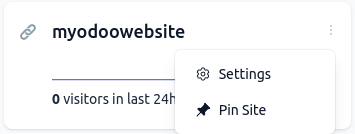
ในแถบด้านข้าง เลือก การมองเห็น จากนั้นคลิก เพิ่มลิงก์แบ่งปัน
Enter a Name, keep the Password protect option disabled, as the Plausible analytics dashboard integration in NightPOS does not support it, then click Create shared link.
คัดลอกลิงก์แบ่งปัน
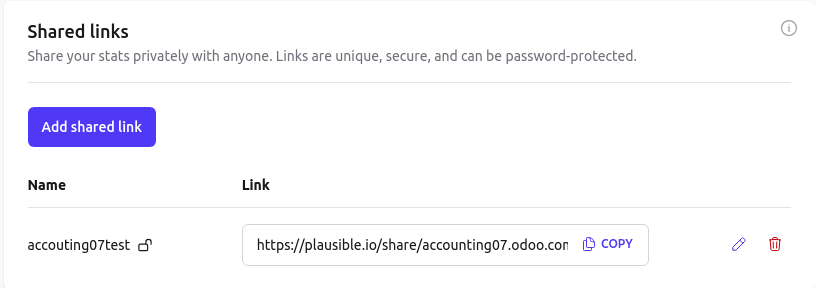
In NightPOS, go to .
ในส่วน การติดตามและ SEO เปิดใช้งาน Plausible Analytics จากนั้นวาง Shared Link Auth และคลิก บันทึก
Tip
If you have multiple websites, add them to your Plausible.io account by going to https://plausible.io/sites and clicking + Add Website. In the NightPOS Website settings, ensure that the correct website is selected from the dropdown menu at the top of the page before pasting the Shared link.
NightPOS automatically pushes two custom goals:
Lead GenerationandShop. Custom goals can be added via Plausible.io. To do so, click the (ellipsis) button on the relevant website card, then navigate to Goals in the sidebar menu, and click Add goal.
ดูเพิ่มเติม
Google Analytics
To follow your NightPOS website's traffic with Google Analytics:
สร้างหรือลงชื่อเข้าใช้บัญชี Google โดยใช้ลิงก์ต่อไปนี้: https://analytics.google.com
หากคุณกำลังตั้งค่า Google Analytics เป็นครั้งแรก ให้คลิก เริ่มการวัด และดำเนินการตามขั้นตอนการสร้างบัญชี
หากคุณมีบัญชี Google Analytics อยู่แล้ว ให้เข้าสู่ระบบและคลิกไอคอน ที่มุมซ้ายล่างของหน้าเพื่อเข้าถึงหน้า ผู้ดูแลระบบ จากนั้นคลิก + สร้าง และเลือก คุณสมบัติ จากเมนูแบบเลื่อนลง
ดำเนินการตามขั้นตอนถัดไป: การสร้างทรัพย์สิน รายละเอียดธุรกิจ และวัตถุประสงค์ทางธุรกิจ
เมื่อคุณถึงขั้นตอน การรวบรวมข้อมูล ให้เลือกแพลตฟอร์ม เว็บ
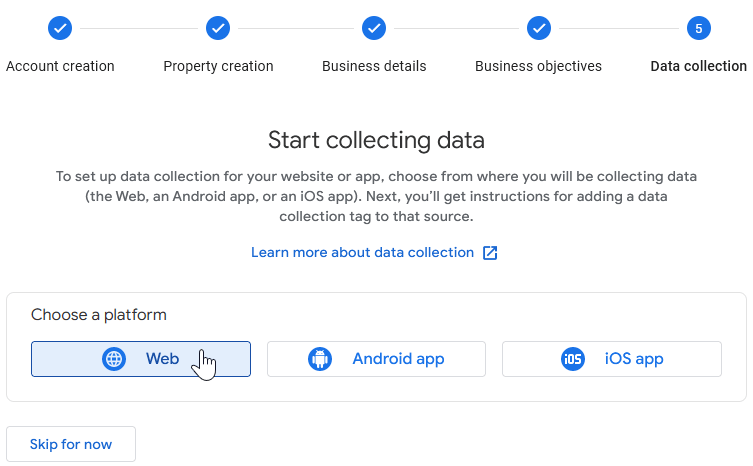
ตั้งค่าสตรีมข้อมูลของคุณ: ระบุ URL เว็บไซต์ และ ชื่อสตรีม จากนั้นคลิก สร้างและดำเนินการต่อ
คัดลอก รหัสการวัด

In NightPOS, go to .
ในส่วน การติดตามและ SEO เปิดใช้งาน Google Analytics จากนั้นวาง Measurement ID และคลิก บันทึก
Tip
If you have multiple websites with separate domains, it
is recommended to create one property
per domain. In NightPOS, in the Website settings, make sure to select the website in the field
next to +New website at the top left of the page before pasting the Measurement ID.
Google Tag Manager
Google Tag Manager เป็นระบบจัดการแท็กที่ช่วยให้คุณอัปเดตโค้ดการวัดและส่วนของโค้ดที่เกี่ยวข้อง ซึ่งเรียกรวมกันว่าแท็กบนเว็บไซต์หรือแอปมือถือของคุณได้อย่างง่ายดาย โดยตรงผ่านตัวแทรกโค้ด
Note
GTM ไม่ใช่เครื่องมือวิเคราะห์และไม่มีฟีเจอร์การรายงาน ใช้สำหรับเก็บรวบรวมข้อมูลและทำงานร่วมกับ Google Analytics เพื่อให้ข้อมูลเชิงลึกที่ละเอียดยิ่งขึ้น เพื่อใช้ GTM อย่างถูกต้อง แนะนำให้กำหนดค่า Google Analytics ด้วย
สำหรับข้อมูลเพิ่มเติม โปรดดูที่ เอกสารประกอบเกี่ยวกับการเชื่อมโยง Google Analytics และ Google Tag Manager
Warning
Some GTM tags use data layers (e.g., advanced eCommerce tracking data layers) to retrieve variables and send them to Google Analytics. Data layers are currently not managed in NightPOS.
Google Tag Manager อาจไม่สอดคล้องกับกฎระเบียบการคุ้มครองข้อมูลในท้องถิ่น
ในการกำหนดค่า GTM ให้ดำเนินการดังนี้:
สร้างหรือเข้าสู่ระบบบัญชี Google โดยไปที่ https://tagmanager.google.com/
ในแท็บ บัญชี ให้คลิก สร้างบัญชี
ป้อน ชื่อบัญชี และเลือก ประเทศ ของบัญชี
ป้อน URL ของเว็บไซต์ของคุณในฟิลด์ ชื่อคอนเทนเนอร์ และเลือก แพลตฟอร์มเป้าหมาย
คลิก สร้าง และยอมรับข้อกำหนดการให้บริการ
คัดลอกโค้ด
<head>และ<body>จากหน้าต่างป๊อปอัป จากนั้นไปที่เว็บไซต์ของคุณ คลิก แก้ไข ไปที่แท็บ ธีม เลื่อนลงไปที่ส่วน ขั้นสูง จากนั้นคลิก <head> และ </body> ถัดจาก Code Injection เพื่อวางโค้ด จากนั้นคลิก บันทึก
Note
The data is collected in the marketing tools used to monitor the website (e.g., Google Analytics, Plausible, Facebook Pixel), not in NightPOS.
ดูเพิ่มเติม