การจัดการ
Time off requests and allocation requests undergo an approval process before being granted. Requests either need one or two approvals, if any, depending on how the specific type of time off is configured. All these configurations can be found under the Management section of the Time Off application.
Note
The Management section in the Time Off application is only visible to users who can approve allocation requests and time off requests.
View time off requests
To view time off requests waiting for approval, navigate to . Doing so reveals the All Time Off page. All time off requests appear in a default Kanban view.
คำขอการลาที่มองเห็นได้ในหน้านี้เป็นของพนักงานที่ผู้ใช้มีสิทธิ์การเข้าถึงแบบ:guilabel:`เจ้าหน้าที่การลา`หรือ:guilabel:`ผู้ดูแลระบบ`ในแอปพลิเคชัน การลา เท่านั้น
ตัวกรองเริ่มต้นในหน้า:guilabel:การลาทั้งหมด`คือ:icon:`fa-filter รอฉัน ตัวกรองนี้จะแสดงเฉพาะคำขอการลาที่ต้องได้รับการอนุมัติสำหรับพนักงานปัจจุบันในทีมของผู้ใช้ โดยมีสถานะเป็น:guilabel:รออนุมัติ`หรือ:guilabel:`การอนุมัติครั้งที่สอง
On the left side of the All Time Off page, there are various grouping options that can be used to narrow down the presented time off requests, located beneath the Status and Department headings.
Since only time off requests that need to be approved are shown, the only Status options are All, To Approve, and Second Approval.
The various departments the user is a member of, and manages employees under, also appear on the left side of the page, under Departments.
หากต้องการแสดงเฉพาะคำขอการลาสำหรับแผนกเฉพาะ ให้คลิกที่ แผนก ทางด้านซ้ายของหน้า จากนั้นจะแสดงเฉพาะคำขอภายในแผนกที่เลือก
หากตัวกรอง รอฉัน ถูกลบออก สถานะทั้งหมดจะปรากฏ
Note
หากไม่มีคำขอใดอยู่ภายใต้ตัวเลือกสถานะหรือแผนกใดแผนกหนึ่ง สถานะหรือแผนกนั้นจะ**ไม่**ปรากฏในเมนูด้านซ้าย
Approve or refuse time off requests
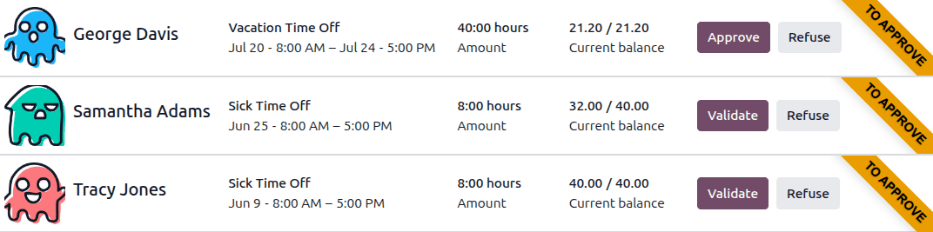
To approve or refuse a time off request, navigate to . At the end of each time off request Kanban card, two buttons appear: an Approve or Validate button, depending on the status of the request, and a Refuse button.
To approve a time off request, click the Approve button. To validate a time off request that has already been approved and is waiting on a second approval, click the Validate button. To refuse a request, click the Refuse button.
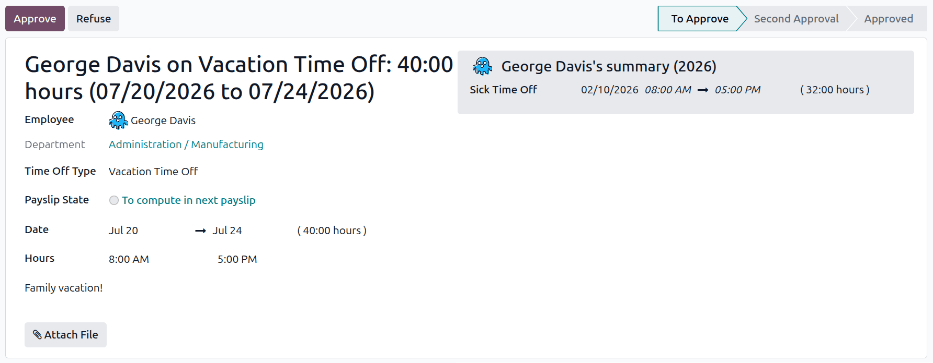
If more information is needed before approving a time off request, click anywhere on the Kanban card (except for the Approve, Validate, or Refuse buttons). Doing so loads the detailed time off request form.
Depending on the rights of the user, changes can be made. To modify the request, make any desired changes to the form. All changes are automatically saved.
นอกจากนี้ยังสามารถอนุมัติ ตรวจสอบ หรือปฏิเสธคำขอจากแบบฟอร์มนี้ได้ คลิกปุ่ม อนุมัติ เพื่ออนุมัติ ปุ่ม ตรวจสอบ เพื่อตรวจสอบ หรือปุ่ม ปฏิเสธ เพื่อปฏิเสธคำขอ
Once a request has been approved, validated, or refused, the Kanban card disappears from the default All Time Off page. To view all requests, including approved and refused requests, clear the default filters in the search bar.
View allocation requests
To view allocation requests waiting for approval, navigate to . Doing so reveals the Allocations page. All allocation requests appear in a default Kanban view.
The only allocation requests that are visible on this page belong to employees the user either has Time Off Officer or Administrator access rights for in the Time Off application.
The default filters on the Allocations page are First Approval and My Team. These filters only present allocation requests that need to be approved for current employees on the user's team, awaiting approval or validation.
On the left side of the Allocations page, there are various grouping options that can be used to narrow down the presented allocation requests, located beneath the Status and Department headings.
Since only allocation requests that need to be approved are shown, the only Status options are All, To Approve, and Approved.
The various departments the user is a member of, and manages employees under, also appear on the left side of the page, under Departments.
To only display allocation requests for specific departments, click on the Department on the left-hand side of the page. Only requests within the selected department are then presented.
If the First Approval and My Team filters are removed, all statuses appear.
Note
หากไม่มีคำขอใดอยู่ภายใต้ตัวเลือกสถานะหรือแผนกใดแผนกหนึ่ง สถานะหรือแผนกนั้นจะ**ไม่**ปรากฏในเมนูด้านซ้าย
Approve or refuse allocation requests
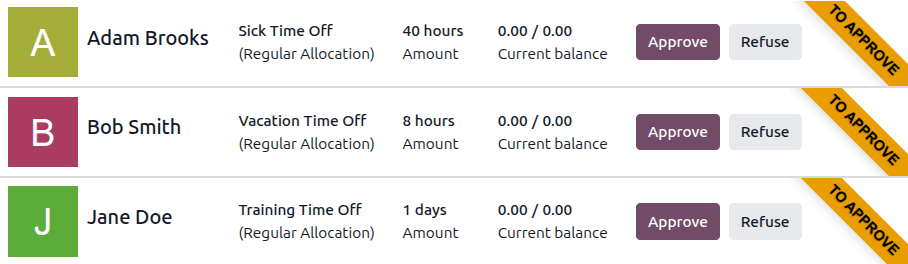
To approve or refuse an allocation request, navigate to . At the end of each allocation request Kanban card, two buttons appear: an Approve or Validate button, depending on the status of the request, and a Refuse button.
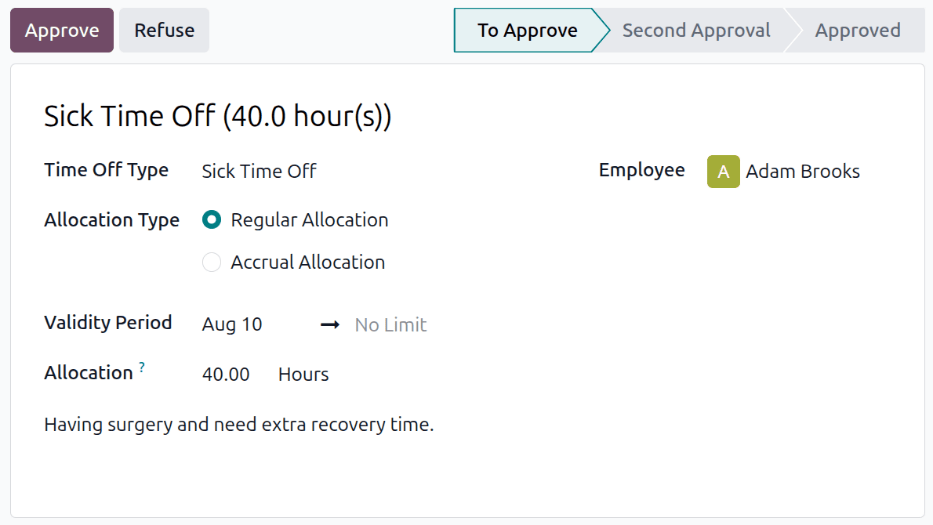
If more information is needed before approving an allocation request, click anywhere on the Kanban card (except for the Approve, Validate, or Refuse buttons). Doing so loads the detailed allocation request form.
Depending on the rights of the user, changes can be made. To modify the request, make any desired changes to the form. All changes are automatically saved.
นอกจากนี้ยังสามารถอนุมัติ ตรวจสอบ หรือปฏิเสธคำขอจากแบบฟอร์มนี้ได้ คลิกปุ่ม อนุมัติ เพื่ออนุมัติ ปุ่ม ตรวจสอบ เพื่อตรวจสอบ หรือปุ่ม ปฏิเสธ เพื่อปฏิเสธคำขอ
Once a request has been approved, validtaed, or refused, the Kanban card disappears from the default Allocations page. To view all requests, including approved and refused requests, clear the default filters in the search bar.